Convert WebP to PNG: A Simple 2026 Guide to Image Formats
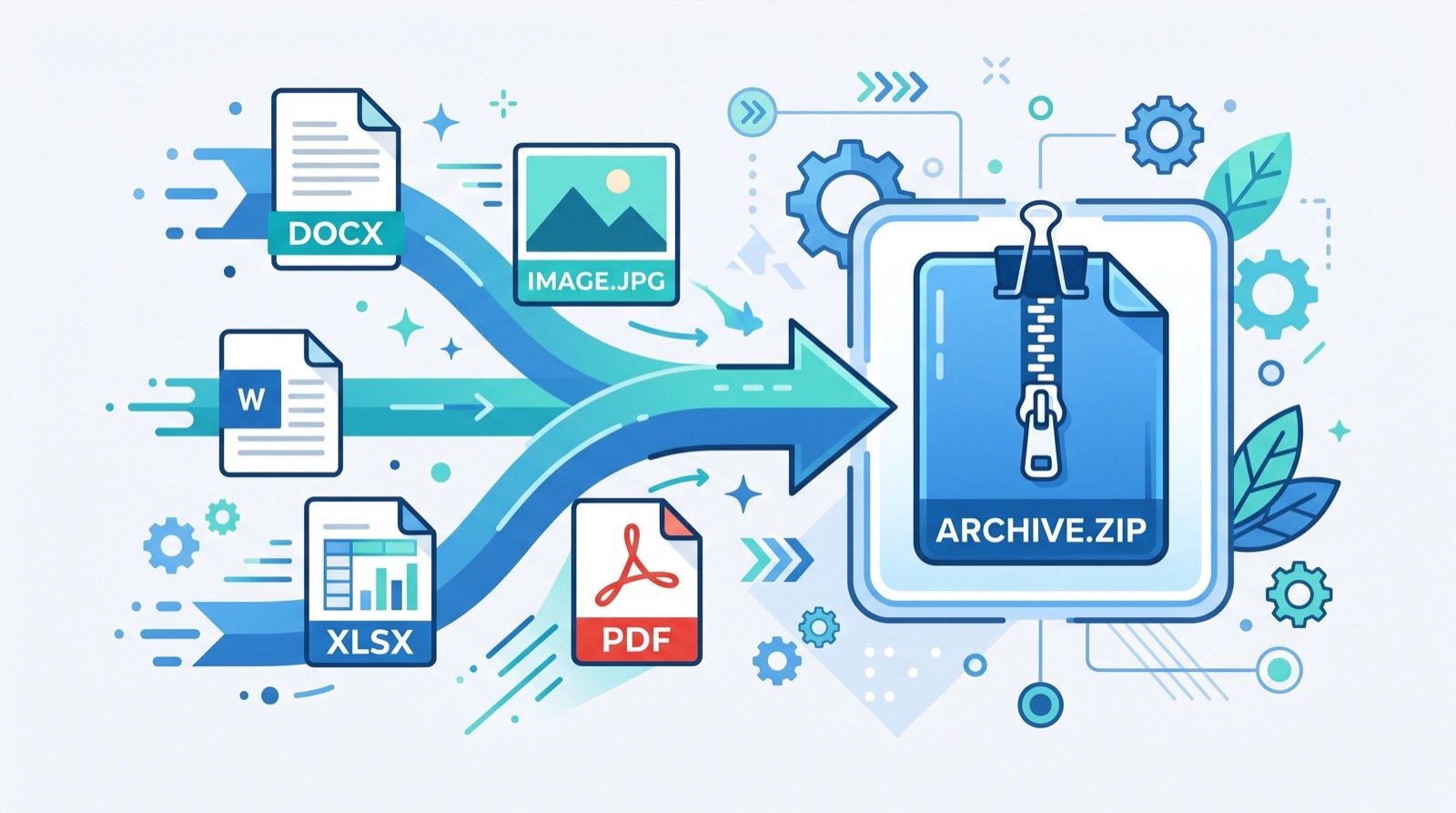
Learning to convert WebP to PNG is one of those small skills that saves a surprising amount of frustration. You download an image, try to open or edit it, and suddenly an app refuses the newer WebP format entirely. In 2026, WebP is everywhere online, yet plenty of editors, uploaders, and older programs still want a classic PNG. This guide explains why that gap exists and how to bridge it in seconds.
WebP was created to shrink image file sizes without wrecking quality. According to Google’s WebP documentation, the format delivers significantly smaller files than PNG or JPEG at comparable quality, which is exactly why websites adopted it so quickly. The trade-off is compatibility, and that is where a quick conversion comes in.
Why You Often Need to Convert WebP to PNG
WebP is fantastic for serving fast-loading web images, but it was built for browsers, not for every tool on your computer. Many design programs, document editors, and content platforms were written before WebP matured, so they simply reject it.
PNG, by contrast, is a universal workhorse. It supports transparency, preserves sharp edges beautifully, and opens in virtually anything. When you need an image that just works everywhere, PNG remains the safe default, which is why conversion is still a daily need.
When PNG Is the Better Choice
PNG shines for graphics with text, logos, screenshots, and anything requiring a transparent background. Its lossless compression means no detail is thrown away, so lines and edges stay crisp no matter how many times you save the file.
The fastest path from a web-optimized file to a universally accepted one is a browser tool that can convert WebP to PNG without any software install. You upload the WebP, download a clean PNG, and move straight on to editing or uploading wherever you were blocked before.
Comparing the Two Formats at a Glance
| Feature | WebP | PNG |
|---|---|---|
| File size | Smaller | Larger |
| Transparency | Yes | Yes |
| Compatibility | Web-focused | Universal |
| Best use | Fast websites | Editing and uploads |
| Lossless option | Yes | Always lossless |
Neither format is better in every case. WebP wins on delivery speed; PNG wins on compatibility and editing. Knowing which job you are doing tells you which format to reach for.
A Quick, Repeatable Conversion Workflow
You do not need a design degree to manage formats well. A short, consistent routine keeps your files tidy and your uploads trouble-free.
- Identify the destination first, since an editor or platform usually dictates the format you need.
- Convert before editing so you are working in a format your software fully supports.
- Keep the original WebP in case you later need the smaller web version again.
- Name files clearly with the format in the filename to avoid confusion later.
- Check transparency survived the conversion if your graphic needs a see-through background.
Follow those five steps and format headaches mostly disappear from your week.
Beyond Images: Fun and Practical Web Utilities
Conversion tools are just one corner of a wider world of handy web utilities. Some are purely practical; others are genuinely delightful and occasionally useful in a pinch.
A charming example is a morse code translator, which turns text into dots and dashes and back again. It is a hit with students, hobby radio operators, and anyone building an escape-room puzzle, and it proves how much a simple, single-purpose tool can brighten a task. The same philosophy, one job done well, is what makes the best converters so dependable.
How Do I Keep My Converted Files Organized?
The clutter problem sneaks up on everyone. After a few conversions you end up with logo.webp, logo.png, logo-final.png, and logo-final-2.png scattered across folders. A little discipline prevents the chaos.
Create a simple folder structure: one folder for originals and one for converted exports. Add the format and a date to filenames, and delete duplicates as soon as a project ships. If managing files is becoming a bottleneck for your business, dependable specialists can set up document and asset workflows that keep everything searchable and in sync.
Choosing Between WebP, PNG, and JPEG
Format choice is really a question of priorities, and understanding the three big players helps you decide quickly. Each was designed with a different goal, so none is universally best.
WebP targets efficient web delivery, squeezing files small so pages load fast. PNG prioritizes fidelity and transparency, making it ideal for logos, screenshots, and graphics with sharp edges. JPEG, the oldest of the three, excels at photographs where tiny compression artifacts are invisible and small size matters most.
A practical rule covers most situations. Use WebP when you control a website and want speed, PNG when you need a transparent background or crisp text, and JPEG for photos headed to platforms that do not accept newer formats. When a tool rejects your file, conversion simply moves it into a format that tool understands.
It also helps to think about the full life of an image. A graphic might start as a PNG master for editing, get converted to WebP for the live website, and be exported as a JPEG for an email newsletter. Keeping one clean master and converting outward as needed prevents the quality loss that comes from repeatedly editing already-compressed files.
Frequently Asked Questions
Will converting WebP to PNG reduce image quality?
No. PNG uses lossless compression, so converting from WebP preserves the visible detail you have. The resulting file will be larger because PNG is less aggressively compressed, but the image itself will look the same or sharper.
Does the conversion keep a transparent background?
Yes, both WebP and PNG support transparency, so a good converter carries the transparent background straight through. Always preview the result if transparency is critical, since a few older tools flatten it to white.
Is it safe to convert images in my browser?
Browser-based converters that process files locally are very safe, because your image never leaves your device. Prefer tools that use HTTPS and clearly state they do not store uploads, and avoid any that require an account for a one-off conversion.
Can I convert several WebP files at once?
Many online converters support batch processing, letting you drop in multiple files and download them together. For large libraries, converting in small batches keeps your browser responsive and makes it easier to spot any file that did not convert cleanly.
Final Thoughts
Knowing how to convert WebP to PNG turns a common roadblock into a two-minute task. Match the format to the job, keep your originals, and lean on simple single-purpose web tools for everything from image conversion to the occasional morse code puzzle. Bookmark a trusted converter today, and never let an unsupported format stall your work in 2026 again.